
Projects
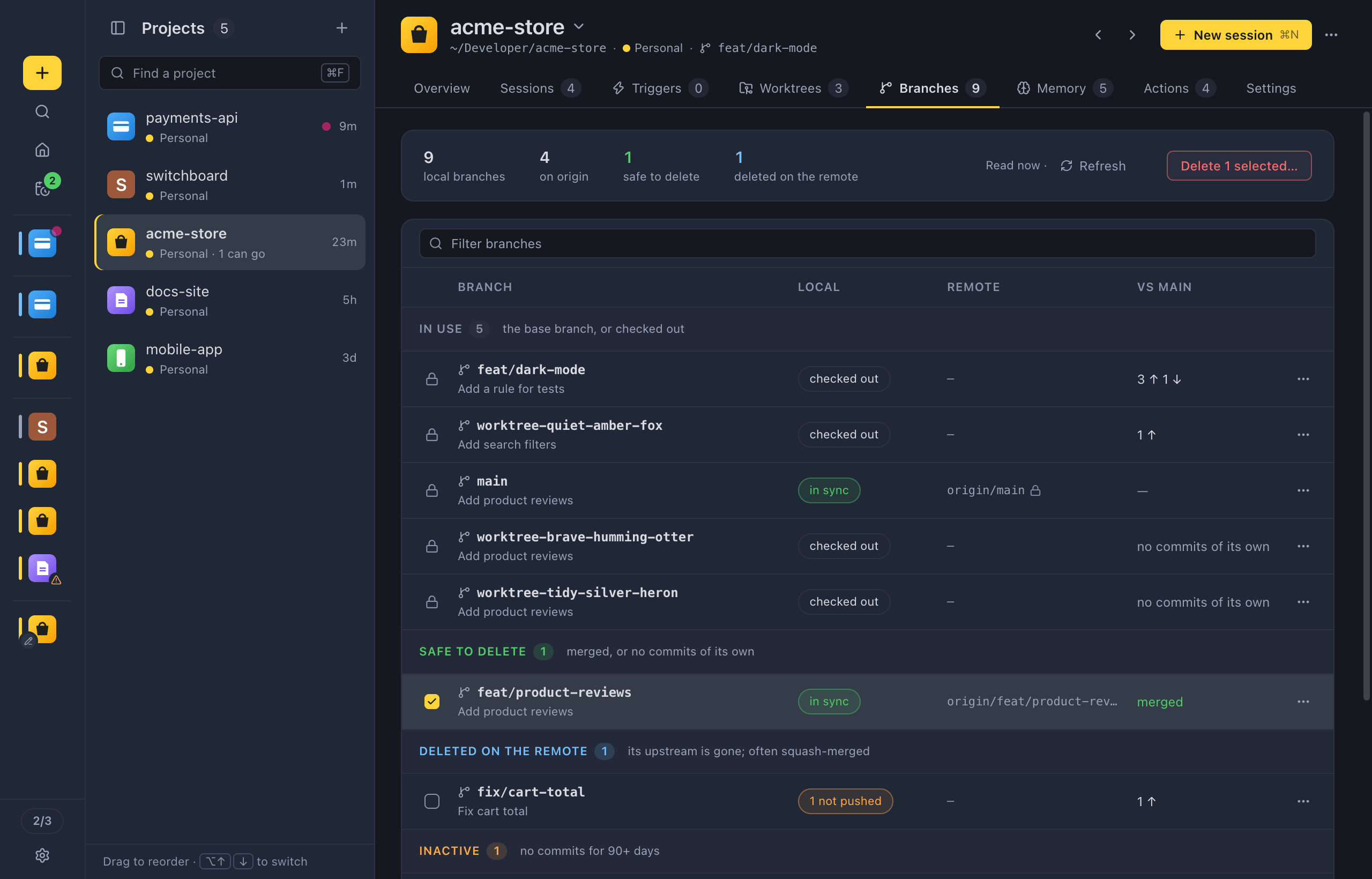
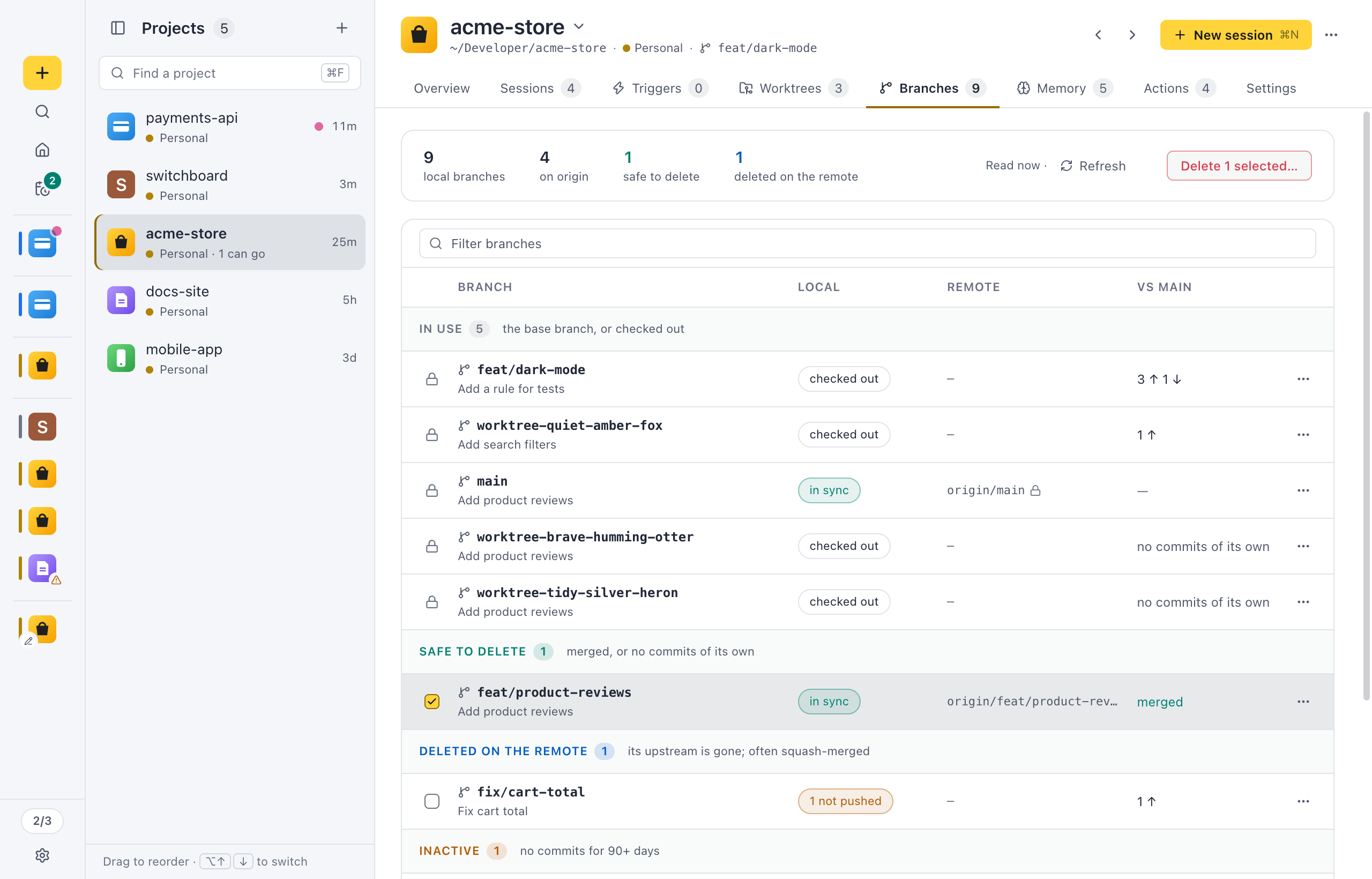
Projects are the folders you work in with Seshboard. Add a folder once, and it is ready to pick in New session, to filter the sidebar by, and to open on a page of its own with its sessions, worktrees, branches and memory. The Projects view is one view for all of it: the list of projects on the left, and the open project’s page on the right. Add, order, rename and remove projects in the list, and work with one on its page.
Open it
Section titled “Open it”- Click the folder icon (Projects) at the bottom of the sidebar. Click it again to go back to your session. It opens on the project you had open last.
- Run Manage projects in the command palette (Command, KControl, K).
- Choose Manage projects… at the bottom of the project filter at the top of the sidebar.
To add a project straight away, run Add project… in the palette, click the + folder button next to the project filter, or choose Add a project folder… in that filter. New session has Add project… too, which picks the project you add there.
Add a project
Section titled “Add a project”- Click + next to Projects at the top of the list (or Add a project folder when the list is empty).
- Pick a folder from the list. It shows the folders you have used Claude Code in, most recent first, with how many sessions each has. Type to filter by name or path, and use the arrow keys and ReturnEnter to add one.
- For a folder that isn’t listed, click Choose folder… and pick any folder.
- Add as many as you like, then click Done.
When you close the dialog, Seshboard opens the last project you added on its Settings tab, so you can set its defaults right away.
The list
Section titled “The list”Each row shows the project’s icon and name, and under it the Claude profile it uses (with more than one) and a worktree hint, such as Personal · 4 can go. A dot says a session in it is working (yellow) or needs you (pink), and the time says when it was last active. A project whose folder is missing says Folder not found.
- Click a row to open the project on the right, on the tab you left it on.
- The gear on a row, shown when you point at it, opens the project’s Settings tab.
- Right-click a row, or press Shift, F10Shift, F10, for the project menu, with Rename project… and Remove from Seshboard….
- Find a project at the top (Command, FControl, F) narrows the list by name.
- Up Arrow or Down Arrow, HOME and END move through the list and open the project they land on.
Switch projects
Section titled “Switch projects”The project’s name at the top of its page has a ▾: click it to find another project. ReturnEnter opens it on the tab on screen, Command, ReturnControl, Enter on its Settings. The ‹ and › buttons next to New session, or Option, Up Arrow or Option, Down ArrowAlt, Up Arrow or Alt, Down Arrow, go to the previous or next project in the list, on the same tab. Command, 1 to Command, 8Control, 1 to Control, 8 jump to a tab.
In a narrow window the list folds away. The ‹ in the page’s header shows it over the project; click outside it or press Escape to close it.
Reorder projects
Section titled “Reorder projects”Drag a row up or down. With a project open, Option, Shift, Up Arrow or Option, Shift, Down ArrowAlt, Shift, Up Arrow or Alt, Shift, Down Arrow moves it up or down one place. Dragging is off while you search. The order is used by the sidebar’s project filter and, when Project order is set to Your order, by New session, Home and the command palette.
Rename a project
Section titled “Rename a project”Choose Rename project… in the project’s menu (right-click its row, or the ⋯ on its page), or change Name on its Settings tab. Only Seshboard uses the new name: the folder on disk keeps its own. Leave the field empty, or click Use folder name, to go back to the folder’s name.
Change the icon
Section titled “Change the icon”Seshboard picks up a project’s icon from the repository when it can: a logo or favicon in the usual places, the icon in package.json, or an iconPath you set in .seshboard.json:
{ "iconPath": "assets/logo.svg" }To set your own, open the project’s menu and choose under Project icon:
- Choose image… picks an image file.
- Use emoji… opens an emoji picker. You can also type any emoji in its field.
- Use letter shows the first letter of the name.
- Detect automatically goes back to the icon found in the repository.
The project menu
Section titled “The project menu”Right-click a row in the list for the project’s menu. It has the icon choices, Rename project… and Open folder in editor, plus:
- Claude profile, to link the project to a profile (only with more than one profile).
- Open project, Worktrees… and Branches…, to open the project’s page on that tab.
- Project settings…, to open its Settings tab.
- Remove from Seshboard…
The same menu opens from a project in the sidebar’s project filter. The ⋯ on a project’s page has the icon choices, Rename project…, Open folder in editor and Remove from Seshboard….
Remove a project
Section titled “Remove a project”Choose Remove from Seshboard… in the project’s menu, or under Remove on its Settings tab, and confirm with Remove. The project disappears from the sidebar and New session. Nothing on disk changes: the folder, its files and its sessions stay, its sessions are still found by search, and you can add it again later.
Open a project’s page
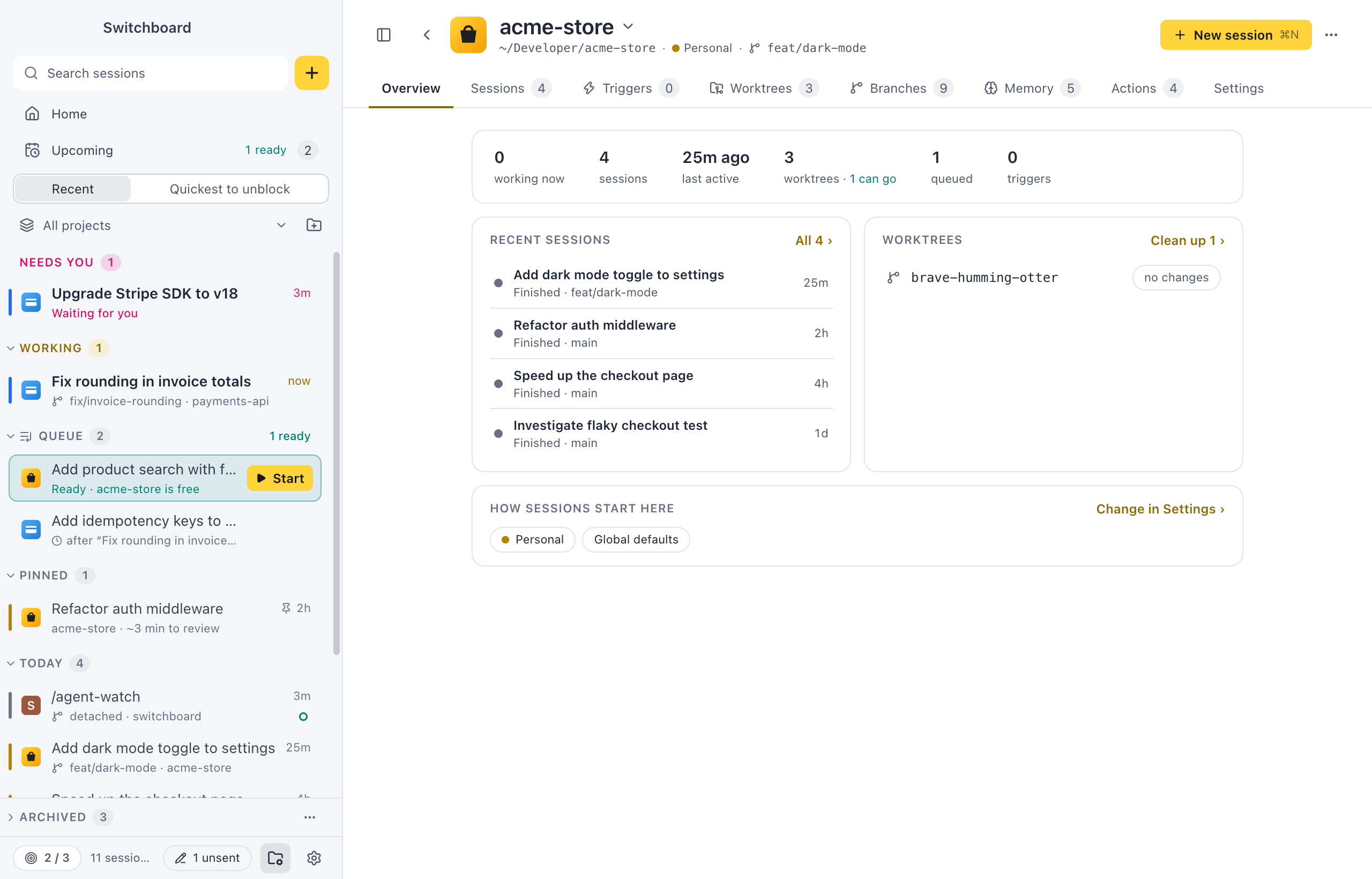
Section titled “Open a project’s page”Every project has its own page with its sessions, worktrees, branches, memory, actions and settings. Open it by:
- clicking its row in the Projects view;
- choosing Open project in the project’s menu in the sidebar;
- running Project: <name> in the command palette;
- pressing Command, PControl, P and picking the project.
The header
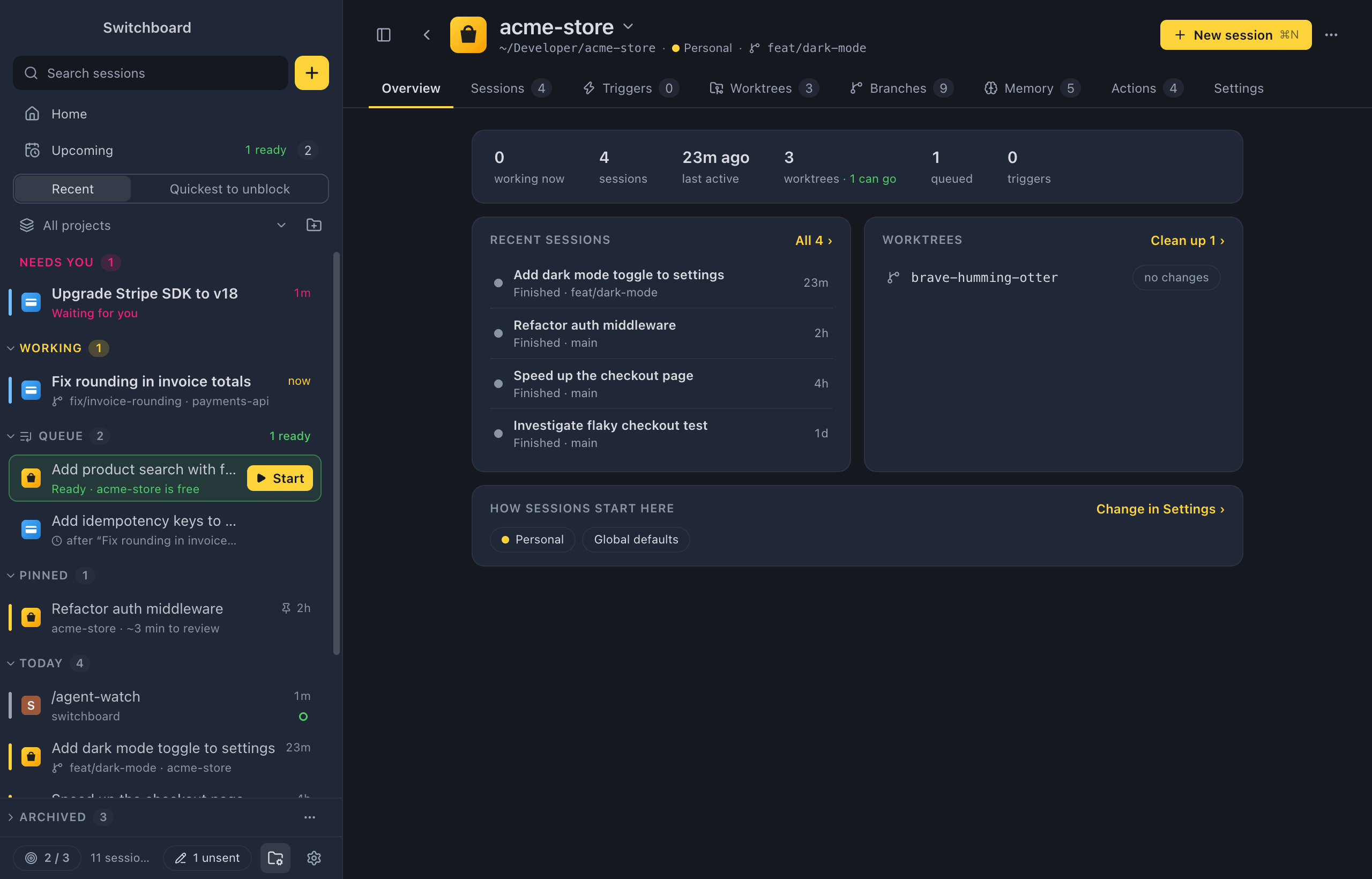
Section titled “The header”The header has the project’s icon and name, and a line with its folder, its profile (with more than one) and the branch checked out. Click the name to switch projects. When you opened the project from a page of Settings, such as the projects in Settings › Memory, a link above the name says Settings › Memory and takes you back there. The back button on your mouse does the same.
On the right:
- ‹ and › go to the previous and next project.
- New session starts a session in this project. While the page is open, Command, NControl, N starts in this project too.
- ⋯ has the icon choices, Rename project…, Open folder in editor and Remove from Seshboard….
The tabs
Section titled “The tabs”| Tab | What it shows |
|---|---|
| Overview | Its numbers, recent sessions, the worktrees worth a look, and how new sessions start. |
| Sessions | The project’s sessions, grouped as in the sidebar, and its queued prompts. |
| Triggers | What starts a session when CI fails or an issue is for you, with their events. |
| Worktrees | Every worktree of the repository, and which ones can go. |
| Branches | Every branch, here and on the remote, and which ones can go. |
| Memory | What Claude Code remembers about the project, its instructions, and your personal memory. |
| Actions | The project’s actions. |
| Settings | The name, icon and folder, the Claude profile, defaults for new sessions, and Remove. |
Sessions, Triggers, Worktrees, Branches, Memory and Actions show a count. With a tab focused, use Left Arrow or Right Arrow to move between tabs.
A project opens on the tab you left it on, for as long as the app runs. The first time, it opens on Overview.
Settings
Section titled “Settings”Settings → Projects → Project order chooses how New session, Home and the command palette list your projects:
- Recent (the default): the ones you used last first.
- Your order: the order you set in the Projects view.
See Settings.
Related
Section titled “Related”- Project settingsThe Claude profile and the choices new sessions in a project start with, and its name and icon in Seshboard.
- New sessionPick a project, choose where Claude works, write the first prompt and start.
- The sidebarThe list of all your sessions, grouped by what needs attention first.
- Clone from GitHubNewStart a project from a GitHub URL. Seshboard clones it into a folder you set, adds it as a project and runs your first prompt there.